
This article briefly explains how to generate and export the inventory report for the TagMatiks AT Lite application.
Settings: Reports → Inventory reports
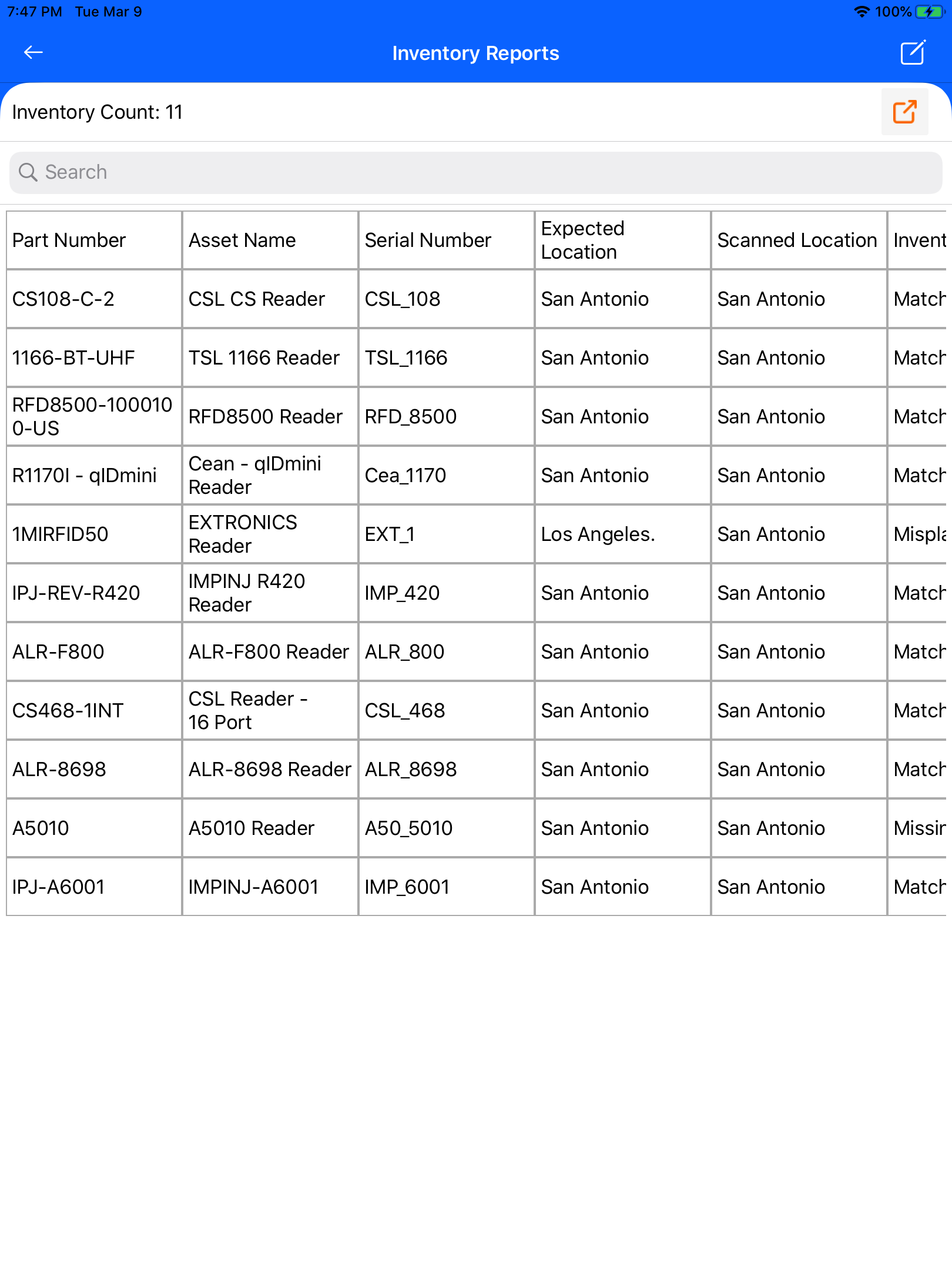
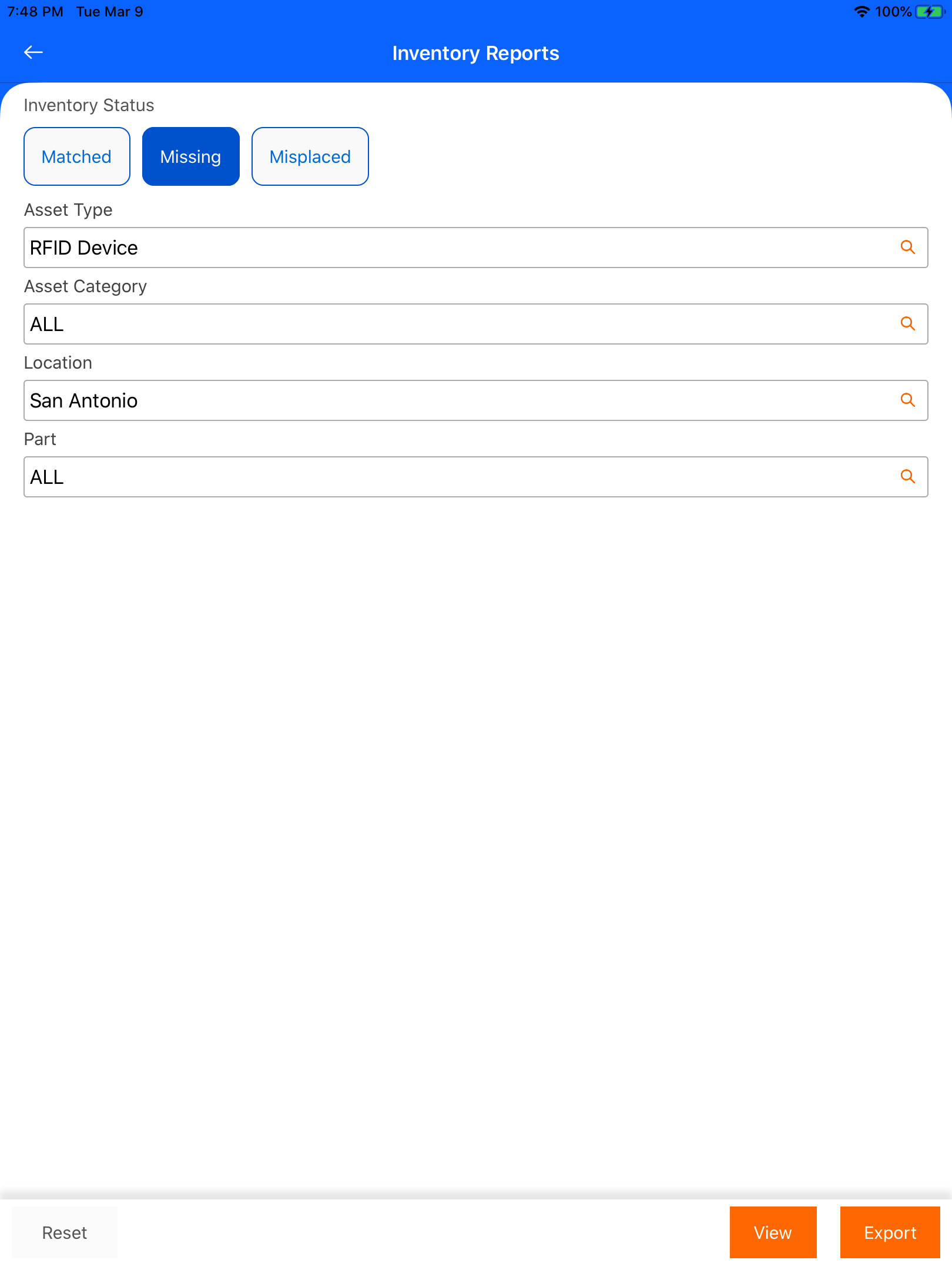
Tap View to generate an inventory report, the generated data will display with their data on the respective fields. Based on the needs, we can choose the column chooser by enabling/disabling the column fields. Enabled field data only are displayed for viewing the reports. We also have a search option to find out the data easily.
We have different options to filter the reports. Select any of the following options that are listed below then tap generate a report to filter the reports with the selected data.
File Format:-In the configuration, we have the option to set file format for export. Or else we have another option like choosing file format in the report page itself by enabling Allow users to select a format.
Export the data by tapping export for the application and exported files can be viewed in their file formats.